Showing posts with label Verizon. Show all posts

Monday, May 23, 2016

Drobo 5N NAS Keeps Losing Network Connection - Problem Solved!


A few months back, I decided to upgrade our home network's disk storage solution from several SATA drives housed in a network-connected, vintage Apple Mac Pro to a brand spanking new Drobo 5N network-attached storage ("NAS") device. The Drobo 5N is a 5-bay disk array with a gigabit wired ethernet connection. This solution is a great way to provide massive amounts of upgradeable disk storage to every computer on your local area network.

After an easy set-up and uneventful data migration, we were ready to experience high-performance data access across all of the devices on the home LAN. Unfortunately, I was perplexed and somewhat dismayed at the initial poor quality of the Drobo performance... or at least what I thought was the fault of the Drobo 5N.

Data transfer speeds were very mediocre and the connection to the NAS would drop intermittently for what seemed to be no apparent reason. This would happen for computers accessing the NAS device through either a hard-wired ethernet or wi-fi connection, both being provided via a Verizon FiOS Quantum Gateway.

The AC1750 Quantum Gateway is advertised to feature gigabit wired ethernet, and 802-11 bfg / nfac, 2.4 and 5.0 GHz wi-fi speeds up to 800 Mbps. However, the data transfer rates I was observing were painfully slower than this.

Was the problem the Drobo 5N, the FiOS Quantum Gateway, or maybe something else? 

We decided to start with troubleshooting the network and the easiest components to test were the ethernet cables that interconnect the various network devices. Test the cables? Yes. We've discovered that ethernet cables can be a not-so-obvious weak point in any network. Don't be fooled that more expensive cables are better quality. Bad connectors. Stretched and kinked cables. Cheap materials. All of these factors are contributors to poor data communications and slow speeds and all problems that can be discovered in both cheap and expensive ethernet cables.

A cable tester does not need to be costly to be effective. We found a very inexpensive, generic RJ45 / RJ11 / Cat 5 / Cat 6 cable tester available online years ago, and it has proven to be one of the best tools in the shop drawer. Simply plug your subject cable into the two ports of the tester and observe if there are any short or open circuits.

Wouldn't you know it? The ethernet cable connecting the Drobo 5N to the router had an open circuit and was only working at 10 Mbps; that's only one percent of the gigabit speed we expected and an obvious bottleneck in the connection to the NAS. We also found faults in cables that connected a network printer and our AT&T MicroCell Wireless Network Extender. All-in-all, testing the ethernet cables proved to be a worthwhile exercise!

With new cables in place, we were pleased to experience a meaningful improvement in network performance. However, data speeds were still a bit lackluster and the connection to the NAS would still drop intermittently. With all of the ethernet ports on the Verizon FiOS Quantum Gateway in use, we suspected that the device was possibly being taxed beyond its capability. 

While the FiOS Quantum Gateway has proven to be a speedy and worthy Internet access point, we believe that it's not an ethernet routing workhorse. Our experience is that all in-one devices typically do not perform all tasks equally well. We decided to place the responsibility of the network's ethernet routing on a device designed to do just that. While it may not have been normal practice to use a stand-alone network switch in a home network in the past, the introduction of more and more network devices makes it a more much more common practice. We selected the NETGEAR ProSAFE Gigabit Model GS108 Unmanaged Switch to do the heavy lifting on our LAN. 

With a dedicated network switch and good ethernet cables all around, the home network suddenly came alive, and both wired and wireless connections to the Drobo 5N proved to be fast and reliable. No more lost connections. No more slow data transfer speeds.

This experience proved to me that it's important to consider all of the system's components when troubleshooting poor performance. Please consider using the same kind of scrutiny when looking for your own local area network bottleneck.

Tuesday, December 4, 2012

Wirelessly Extend Your Verizon FiOS Wi-Fi Network

The Verizon FiOS Internet service is really quite spectacular. With their Quantum service, I regularly experience direct-connected speeds of 60 Mbps download and 30 Mbps upload. However, the Actiontec MI424WR router is a weak link in their product. The wi-fi radio in this device is the source of frustration for many Verizon customers... me included.

Many FiOS users search for a way to extend the wi-fi capabilities of the Actiontec router. A simple Google search will reveal several options: tin foil reflectors, high-gain antennas, power line carrier sets, wi-fi repeater devices, and ethernet-connected remote access points. Some of these solutions work, some maybe not so much. None of them provided the answer that I was looking for.

I needed to solve three problems: (1) extend the range of my existing wireless network (and not by creating a new, separate wi-fi network); (2) provide ethernet network connections at a remote location in my home (for ethernet-connected computers, printers and console games); and (3) provide these two functions wirelessly (i.e. I did not want to install ethernet cable throughout the building for a new access point). The ideal solution would be a Repeater Bridge.

A Repeater Bridge connects two local area network segments with a wireless link. The two segments are in the same network, and to all of the computers on the network it looks like two ethernet switches connected by a cable. Since the computers are on the same network, broadcasts reach all machines. This is what I needed.

Sounds like an impossible task, right? Wrong. Fortunately, there is a rather simple and economic solution that is proven. It's not my idea, or my work, so no credit claimed here. I'm just providing you with the steps that I took, and a convenient source for all of the links to the necessary resources.

The solution is based upon the outstanding work of the very talented employees and dedicated user community at DD-WRT. The DD-WRT product is a Linux-based alternative OpenSource firmware designed for use with a variety of wi-fi routers. The idea is to load this custom firmware on the router which allows it to be more than simply an access point; to unleash the powerful device's enhanced capabilities... like the Repeater Bridge function we desired.

The DD-WRT community is probably best known for their work on enhancing the capabilities of the inexpensive Linksys WRT54G wireless router. While the WRT54G device is a real workhorse, it does not support IEEE 802.11n networks like that used by the Actiontec MI424WR. Therefore, I would need to start with another device.

The Linksys (Cisco) E2500 / N600 router is a dual-band N (2.4 and 5 GHz) device that supports transfer rates to 300 Mbps. More than sufficient for my needs. It is moderately priced, and can be found at most online and big-box retailers. It may sound funny to purchase a brand new router and essentially "hack" it. However, the hardware itself is really quite powerful, and we are just taking the steps necessary to leverage the capabilities of the DD-WRT firmware.

After installing the firmware and configuring the router as instructed, we are pleased to report that our DD-WRT powered Repeater Bridge has been working flawlessly on our network, having resolved many of our problems with the Actiontec router. If you are an advanced novice and are able to follow instructions, you can get the same results.

The actual steps we took are listed here with brief comments. Please carefully read the information at each of the provided links. While we are confident that these instructions work, we cannot be held responsible for any damage that may occur to your router, or the devices connected to your network. We are also not able to provide support for the DD-WRT firmware or instructions. Comments requesting such support will be deleted.

(1) Chose a router that you believe may meet your needs.

We chose the Linksys E2500 router since it supported 802.11n and had the dual-band and throughput capabilities that we desired.

(2) Navigate to the DD-WRT router database, and search for your chosen router to make certain that there is a current, up to-date firmware that supports the device.

Some routers are not supported by DD-WRT. Check before you buy!

(3) Acquire the router.

(4) Set-up and confirm that the router works as it was originally designed and that it performs the standard access point function.

For a brand-new router, there may be an initialization process that requires vendor-supplied software.

(5) Navigate to the DD-WRT wiki, and search for your chosen router. Carefully follow the instructions to replace the device's firmware.

The DD-WRT wiki will always have the most recent version of the firmware for your device. Do not trust other sources as installing the wrong version of the firmware may render your router useless.

I cannot stress enough to carefully follow all of the instructions. Do not skip a step regardless of how meaningless you may believe that it is.

(6) Navigate to the DD-WRT instructions on how to configure a Repeater Bridge. Carefully follow the instructions to configure the device for this specialized function.

I cannot stress enough to carefully follow all of the instructions. Do not skip a step regardless of how meaningless you may believe that it is.

(7) Enjoy the enhanced capabilities of your router, including the wireless extension of your Verizon FiOS Actiontec MI424WR router!

Sunday, January 29, 2012

Verizon FiOS - Remote DVR Access Problems

One of the great things about the Verizon FiOS set-top boxes being IP (Internet Protocol) enabled is that it provides the opportunity for the devices to be securely accessed by remote applications. 

I find it very convenient to use these apps to see what is already recorded, or scheduled to be recorded on the DVR ("Digital Video Recorder"), while in a remote location. It's also nice to be able to schedule new recordings when I'm are not at home with the remote control in-hand. Verizon offers this capability for all FiOS customers via the Verizon website and through applications for mobile devices like the iPhone, iPad, and Android.

I had been using this feature while traveling on business or out with friends for several months without a problem. Then, for no apparent reason, the app broke.

[sigh]

Suddenly, whenever I would attempt to connect to the FiOS DVR from the Verizon website, iPhone, or iPad, I would receive an error message that stated "Set-Top Box is not responding," "Bad Gateway," or "Network connection timed out." I chalked it up to a gremlin and waited a few days before trying again. Unfortunately, I got the same result.

Searching online, I found that this seemed to be a rather common problem for Verizon. There were a number of people who complained that the Verizon Support Representatives were not of much help when trying to fix this issue. I can confirm that, as my own chat session started with the rep telling me that the iPhone and iPad were not capable of remotely accessing the FiOS DVR... which would probably be a real surprise to the Verizon folks who designed and coded the iPhone and iPad app.

After spending way too much time trying to work with the Verizon support representatives, I was able to easily resolve the problem myself. If you are having this same issue with remote DVR control capability, this blog post may be of some help.

First, two real basic things to check. 

     Is the DVR turned on?

     Is the FiOS router turned on?

Yes. I know that should be obvious, but you may be surprised...

Based upon the information I've been able to gather, the remote DVR error messages are related to a port mapping issue on the Verizon back-end system. As you may have already determined, rebooting the set-top box or FiOS router does not correct the problem. Apparently, Verizon Tech Support can perform some remote magic to fix this mapping problem, and I believe that magic is simply rebooting the ONT ("Optical Network Terminal"). 

The ONT is the device that provides the interface between the Verizon fiber optic network and the Ethernet / coax system in your house. This device is most often located in some other place away from the FiOS router, usually mounted on the outside of the building. Very close by the ONT, on the inside of the building, is the device's power supply. The unit includes a AC power transformer, AC to DC power supply and conditioner, and a large battery to provide uninterruptible power to the ONT. In order to reboot the ONT on-site, you must first disconnect the AC power (i.e. unplug the power supply from the 120 volt wall outlet) and then disconnect the backup battery.

Warning! Rebooting the ONT will temporarily disable your connection to the Verizon FiOS system. Be certain that all of your network users are aware that their Internet connection and television signal will be interrupted during this process.

To disconnect the backup battery, open the swinging battery door on the ONT power supply and disconnect the battery plug to the power supply (circled in blue in the photo) by squeezing the connector's tabs and pulling straight out. Wait about ten seconds and then reconnect the backup battery and plug the power supply back into the AC outlet. 


Once the power has been restored, the ONT will reboot, resetting the port mapping which should quickly fix the problems that you have been experiencing with remote DVR access. This process is straight-forward, simple, and doesn't require having to deal with Verizon Tech Support!

[yea!]

Sunday, March 7, 2010

Verizon FiOS and an Apple Airport Extreme Network Working Together


[Editor's Note: This blog post is one of our most popular and it has prompted many excellent questions from interested readers. Please take the time to read through the comments at the end of this posting as the additional information may be very useful in your own efforts.]


Patience does have its rewards. After waiting years for Verizon's FiOS ("Fiber Optic Service") to become available in our area, we have recently been able to finally rid ourselves of various combinations of DSL ("Digital Subscriber Line"), cable, and satellite television services. Our FiOS service has been installed for several weeks; long enough for me to declare it a far superior television and Internet service than anything we have used in the past.


Internet speeds have been amazingly fast and rock-solid, especially when compared to the time-of-day variability we experienced with cable. We subscribe to Verizon's 25/15 Internet service, which is supposed to provide approximately 25 Mbps download and 15 Mbps upload speeds. According to the results from Speedtest.net, our actual speeds over the past few months have been closer to 25.94 Mbps download and 14.16 Mbps upload. That's close enough to advertised for me, and incredibly faster than what was supposed to be provided by the Comcast Blast service previously installed (16 Mbps download and 2 Mbps upload advertised speeds... but rarely, if ever, achieved).


The FiOS 25/15 service includes the use of an Actiontec MI424WR wireless broadband router. The use of this router is not optional. This device is the fiber modem (actually, coax cable from the fiber interface outside of the house to the modem inside of the house) and it is required to manage the distribution of the FiOS television signal to the set-top boxes at your location. The router has four (4) Ethernet outputs as well as Wi-Fi capability. However, the wireless function of the router is not needed if you prefer to use another device to provide a Wi-Fi access point.


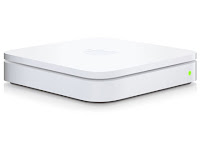
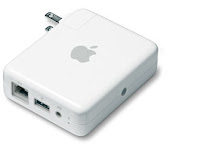
We use an Apple Airport Extreme base station in our home to provide wireless Internet access for notebook computers and other devices (i.e. Nintendo Wii, iPod Touch, iPhone and AppleTV). The Apple wireless network is extended throughout the house and is also used for wireless access to physically distributed printers via a WDS ("Wireless Distribution System") configuration using a pair of Apple Airport Express devices.


With no desire to give-up the Apple wireless network, we chose to ignore the wireless capability of the FiOS router. That can be done simply enough by just connecting the Ethernet input of the Airport Extreme to one of the MI424WR's Ethernet outputs. That by itself will have you up and running as soon as the FiOS service has been activated, although it does not address the potential wireless interference between the Airport Extreme and the MI424WR or the assignment of your network's IP ("Internet Protocol") addresses to the 192.168.1.xxx range used by the MI424WR by default.

We found that deactivating the MI424WR's wireless capability and reassigning the network IP addresses to Apple's familiar 10.0.1.xxx range was easy enough, but admittedly a bit confusing if you are not familiar with changing router attributes. With the following instructions, anyone should be able to complete this task in just a few minutes time. It's as simple as 1-2-3.


1) Log-in to the MI424WR router as the administrator.

Using a computer that is connected to the local network, direct your web browser to the MI424WR's default administrator log-on screen at http://192.168.1.1

The default User Name is admin and the Password is typically either password or password1 (depending upon the Verizon technician that set-up the device).

This will bring you to the overview screen. Don't be overwhelmed by all of the information that is displayed. You do not need to be concerned with it to make the following changes.


2) Deactivate the MI424WR's Wi-Fi radio.

Click on the Wireless Settings icon in the banner menu, then click on Basic Security Settings from the vertical menu on the left-hand side of the page. This will display the Basic Security Settings dialog.


In the first section of the Basic Security Settings dialog, you have the choice of turning the wireless radio on or off. Click on the Off button and scroll to the bottom of the page and select Apply.

This will disable the wireless access point and prevent the MI424WR's Wi-Fi radio from interfering with the Apple Airport Extreme's signal.


3) Change the network's IP addresses to the 10.0.1.xxx range.

Click on the My Network icon in the banner menu, then click on Network Connections from the vertical menu on the left-hand side of the page. This will display the Network Connections dialog.

Click the active hyperlink for Network (Home/Office) at the top of the table in the Network Connections dialog. This will display the Network (Home/Office) Properties dialog. Click on the Settings button at the bottom on this dialog. This will display a more detailed Network (Home/Office) dialog.


Change the IP Address of the router to your choice (e.g. 10.0.1.1), and change the Start IP Address and End IP Address to your choices (e.g. 10.0.1.2 and 10.0.1.254 respectively). Do not change any other entries in this dialog. Scroll to the bottom of the page and select Apply.

Click on Logout from the vertical menu on the left-hand side of the page to exit the router administration session.


If you ever need to access the router's administrator application again, you will need to use the router address you assigned in the steps above (e.g. http://10.0.1.1).

After you have finished making these changes and logged-out of the administrator session, you will need to reboot all of the devices connected to your Apple wireless network and to the MI424WR, including the set-top boxes. This step is required to make certain that the correct IP addresses are assigned to each of the devices.


That's it! After following these steps, your Verizon FiOS service will work flawlessly with your Apple wireless network; there will be no wireless interference from the MI424WR Wi-Fi access point and your network IP addresses will be reassigned to the familiar 10.0.1.xxx range.